How to Edit Audio: The Complete Guide (2026)
Summarize with:




I was 12 years old.
No mic. No software. No clue. Just a Samsung Galaxy S (the very first one) and raw audio that sounded like a crowded marketplace.
I didn't even know audio editing was a thing. I'd record a voiceover, upload it, and wonder why nobody watched for more than 10 seconds.
One day, a commenter wrote: "The content is great but your audio hurts my ears." That hit different.
Fast forward to today. I'm 22, eight years into content creation on YouTube, Instagram, and TikTok. I've grown to 33,000 subscribers. And I can take raw audio that sounds terrible and turn it into something that sounds like a professional studio.
Using free software. On any device. In about 15 minutes.
Here's the kicker: the editing methods I use aren't hard. They're just not explained in one place. Every guide covers one tool. Or one platform. Or skips the actual numbers entirely.
This one covers all of it.
By the end, you'll know how to edit audio on a Windows PC, Mac, iPhone, Android, or Chromebook. Whether you're polishing voiceovers, cleaning up podcast episodes, fixing noisy YouTube recordings, or editing audio for Reels.
How to Edit Audio (Quick Answer)
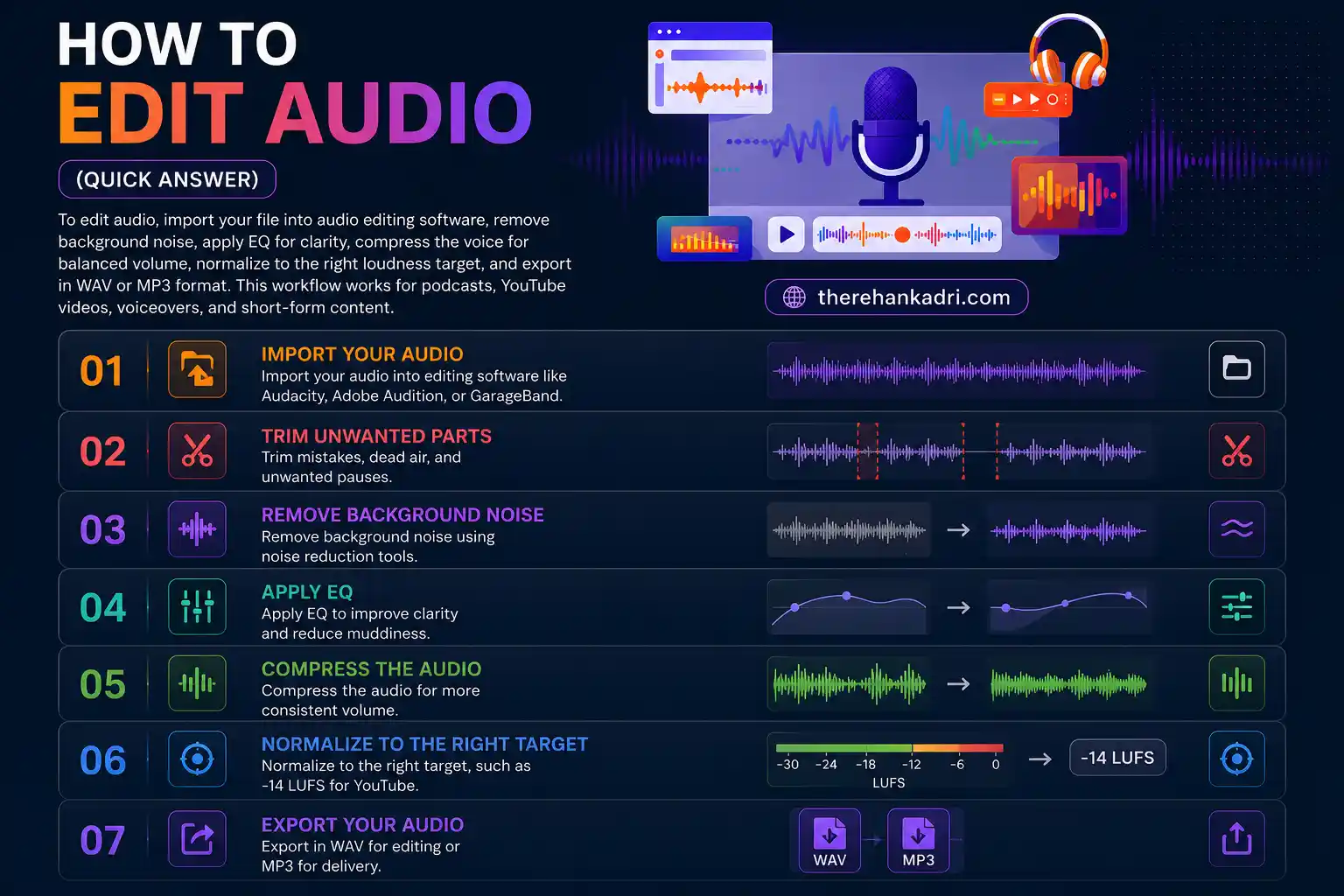
- Import your audio into editing software like Audacity, Adobe Audition, or GarageBand
- Trim mistakes, dead air, and unwanted pauses
- Remove background noise using noise reduction tools
- Apply EQ to improve clarity and reduce muddiness
- Compress the audio for more consistent volume
- Normalize to the right target, such as -14 LUFS for YouTube
- Export in WAV for editing or MP3 for delivery
How to edit voice recordings
Voice recordings need a slightly different workflow than music. The goal is not to make the voice sound "produced." The goal is to make every word easy to understand.
For a voice recording, start by cutting dead air, long pauses, repeated takes, mouth clicks, and heavy breaths. Then remove constant room noise before you touch EQ. After cleanup, cut low-end rumble below 80-100 Hz, reduce muddy frequencies around 200-400 Hz, add a small clarity boost around 3-5 kHz, and use compression to even out loud and quiet words.
If you searched "how to edit voice recording," "edit voice," or "audio correction," this is the core order: clean first, shape second, control volume third, export last.
How to edit songs and music
Editing songs is different from editing spoken audio because you are protecting musical balance, not just speech clarity.
For music, avoid aggressive noise reduction unless the recording has obvious hiss or hum. Trim the start and end cleanly, apply fades so the song does not click, use EQ gently, and normalize the final level without crushing the dynamics. If you are editing a song for a video, make sure the music sits below the voice instead of competing with it.
For most creator workflows, the safest music edit is simple: trim, fade, lower the background track under narration, and export at the same sample rate as your video project.
Audio Editing Workflow Summary
| Step | Action | Tool |
|---|---|---|
| 1 | Import audio | Audacity / GarageBand / Adobe Audition |
| 2 | Trim mistakes and silence | Timeline editor |
| 3 | Remove noise | Noise Reduction |
| 4 | Adjust EQ | Equalizer |
| 5 | Compress voice | Compressor |
| 6 | Export final audio | WAV or MP3 |
Best Audio Editing Settings by Use Case
| Use Case | Loudness Target | Best Export Format |
|---|---|---|
| YouTube | -14 LUFS | WAV |
| Podcast | -16 LUFS (Apple) / -14 LUFS (Spotify) | MP3 |
| Reels / Shorts / TikTok | -9 to -12 LUFS | AAC or WAV |
| Voiceover | Peaks below -3 dB | WAV |
Best Audio Editing Software (Quick Picks)
Editor's Picks
Professional audio editing apps, ranked by setup
Choose the one that fits your device, workflow, and how much control you need.
- 01
 Windows / Mac / LinuxBest Overall
Audacity
Best free audio editor for beginners on Windows, Mac, and Linux
Jump to sectionStart here - 02
.svg) Windows / MacPro Workflows
Windows / MacPro WorkflowsAdobe Audition
Best for professional podcast, YouTube, and broadcast workflows
Jump to sectionAdvanced setup - 03
.svg) Mac / iPhoneApple Users
Mac / iPhoneApple UsersGarageBand
Best free option for Mac and iPhone users
Jump to sectionApple workflow - 04
 iPhone / iPadiPhone
WavePad
Best iPhone editor for quick mobile cleanup
Jump to sectionMobile cleanup - 05
 AndroidAndroid
Lexis Audio Editor
Best Android editor for voiceovers and short-form content
Jump to sectionPhone editing - 06
.svg) Chromebook / BrowserChromebook
Chromebook / BrowserChromebookBandLab
Best browser-based option for Chromebook users
Jump to sectionBrowser workflow
What is audio editing? (Simple Answer)
That's it. Nothing complicated.
You trim the dead air. You remove the background noise. You balance the volume. You export it in the right format for the right platform.
But here's something nobody in the top 10 Google results explains well: there are two different types of audio editing.
Destructive editing permanently changes your audio file. When you apply an effect in Audacity and save, the original recording is gone forever. There's no undo button after you close the project. This is fast and simple, but risky.
Non-destructive editing keeps your original file safe. Programs like Adobe Audition, Logic Pro, and Reaper add effects on top of your audio without actually changing it. You can undo anything, change the order, or remove effects whenever you want. It takes longer to set up, but it's WAY more flexible.
For beginners: start with destructive editing in Audacity. Just save a backup copy of your raw file first. Always.
For anyone working on client projects, podcasts with multiple episodes, or music: use a non-destructive workflow. You'll thank yourself the first time a client asks you to "just change one thing" three weeks later.
What you need to edit audio
Before you open any app, here's the big picture.
You need two things: your raw audio file and the right software for your device. That's it.
Here's a quick cheat sheet so you can jump straight to your setup:
| Device | Built-in Tool | Best Free Editing Software | Cost | Best For |
|---|---|---|---|---|
| Windows PC | (none useful) | Audacity | Free | YouTube, podcasts, voiceovers |
| Mac | GarageBand | Audacity / GarageBand | Free | Music, podcasts, voice editing |
| iPhone | Voice Memos (basic trim) | WavePad | Free | Quick edits, mobile podcasting |
| Android | (none useful) | Lexis Audio Editor | Free | Voiceovers, Reels narration |
| Chromebook | (none) | BandLab | Free | Browser-based editing |
If you already know your device, skip ahead. But if you want to understand why some edited audio sounds professional and others sound like a phone call from 2004, keep reading.
How to edit audio step by step
That's the universal workflow.
The sections below break it down by device, app, and exact settings so you can follow the same process on whatever you're using.
Why audio editing matters for creators
Here's something most creators don't realize.
Your audience will forgive a blurry webcam. They will not forgive audio that sounds like you're speaking through a wall.
Researchers actually tested this. They played the exact same information to two groups. One heard clean audio. The other heard noisy audio. The group with bad audio thought the speaker was less credible, less interesting, and less trustworthy.
Same exact words. Different perception. Just because of audio quality.
Bad audio is also the #1 reason people stop listening to podcasts. Not bad content. Bad sound.
And on YouTube (which gets over 720 hours of new video every single minute), the algorithm cares about one thing above all else: how long people watch. If your audio makes people click away in the first 15 seconds, YouTube thinks your video is bad and stops showing it to people.
It gets worse.
YouTube's "Stable Volume" feature now automatically adjusts how loud your video plays. If your audio jumps around in volume (loud one second, quiet the next), YouTube turns everything down. And when it does, all that room hiss and background noise you thought nobody would notice? Now it's front and center.
That's why audio editing isn't optional anymore. It's a baseline requirement.
For YouTube. For podcasts. For Reels. For everything.
Audio editing effects chain
This is the single most important thing in this entire guide.
Order matters. Apply these effects out of sequence and your audio will sound worse, not better.
I call this the Compressor Sandwich:
- Noise Reduction (clean the recording)
- Normalize (bring volume to a consistent starting level)
- EQ (shape the tone)
- Compression (control the loud and quiet parts)
- Normalize (set the final volume)
That's it. Five steps. In this exact order.
Why does order matter?
If you apply EQ before noise removal, you boost the frequencies of the noise too. Now the hiss is louder and harder to remove.
If you compress before EQ, the compressor is working on frequencies you haven't shaped yet. It's compressing rumble and mud that you would have cut.
Follow the chain. Every time.
Audio file formats for audio editing
Most creators don't think about formats until they export something that sounds wrong.
WAV: Uncompressed. Every single piece of recorded information is preserved. Large file sizes (about 10 MB per minute of stereo audio). Use this for editing. Always.
MP3: Compressed. Permanently throws away audio data to shrink the file. A 320 kbps MP3 sounds close to WAV, but it's technically worse. Use only for final delivery (podcast RSS, music uploads).
FLAC: Compressed but lossless. It shrinks the file size without destroying any data. Think of it like a ZIP file for audio. Use when you want smaller files but can't lose quality. Not supported by every platform, though.
M4A (AAC): Apple's version of MP3. Slightly better quality than MP3 at the same file size. Used by Voice Memos, iTunes, and Apple Podcasts. Fine for delivery, not for editing.
Which audio format should you use?
Here's my decision tree:
Editing? WAV. Always.
Exporting for YouTube? WAV at 48 kHz, 24-bit.
Exporting for a podcast? MP3 at 128-192 kbps. Your podcast host (Spotify, Apple) will re-encode anyway. 192 kbps gives the best balance of quality and streaming speed.
Archiving finished projects? FLAC. Half the file size of WAV with zero quality loss.
Quick sharing? M4A or MP3. Whichever is easier on your device.
Rule of thumb: edit in WAV. Convert only at the very last step if you need a smaller file.
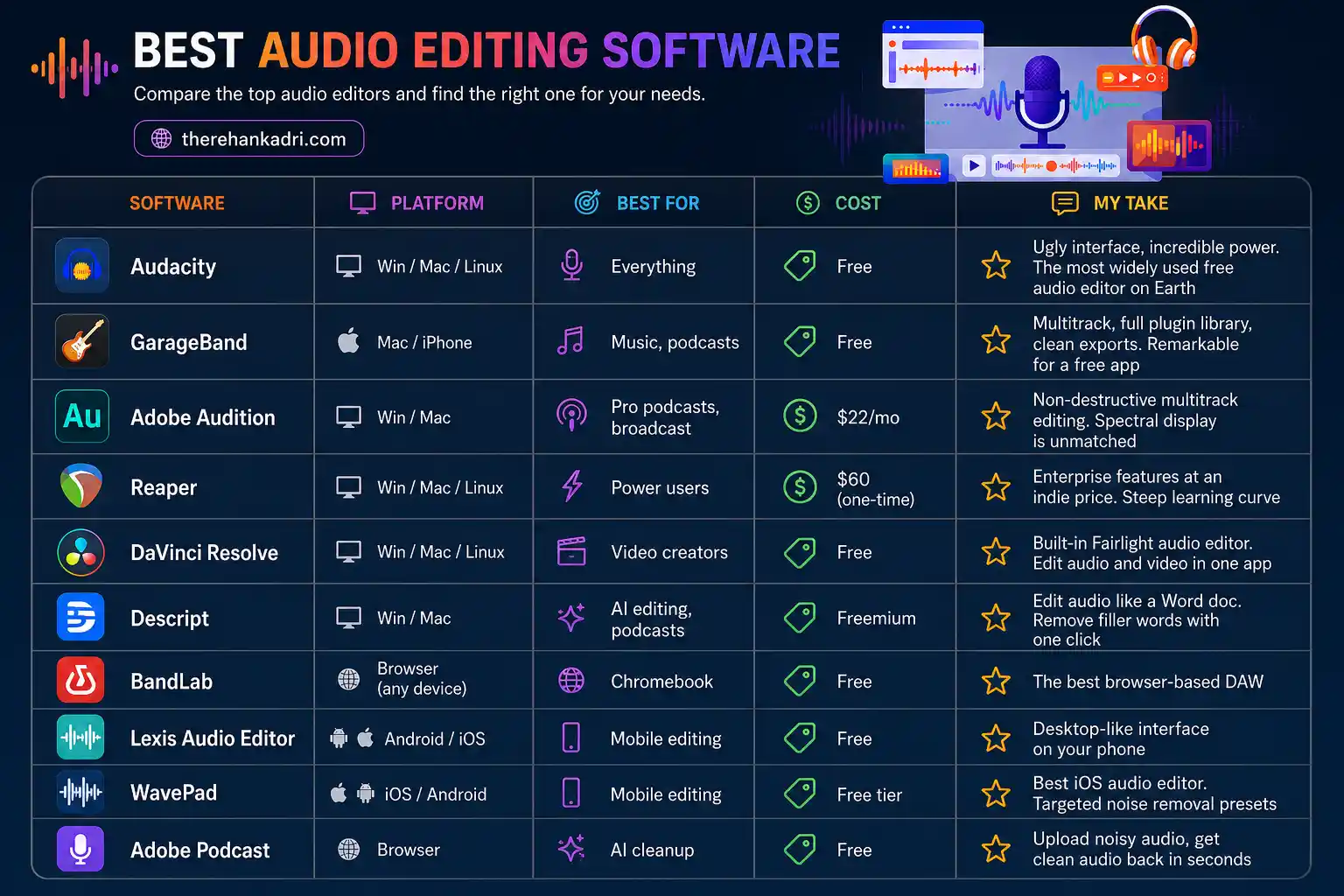
Best audio editing software in 2026
Here's my shortlist. These are the tools I've actually tested.
| Software | Platform | Best For | Cost | My Take |
|---|---|---|---|---|
| Audacity | Win / Mac / Linux | Everything | Free | Ugly interface, incredible power. The most widely used free audio editor on Earth |
| GarageBand | Mac / iPhone | Music, podcasts | Free | Multitrack, full plugin library, clean exports. Remarkable for a free app |
| Adobe Audition | Win / Mac | Pro podcasts, broadcast | $22/mo | Non-destructive multitrack editing. Spectral display is unmatched |
| Reaper | Win / Mac / Linux | Power users | $60 (one-time) | Enterprise features at an indie price. Steep learning curve |
| DaVinci Resolve | Win / Mac / Linux | Video creators | Free | Built-in Fairlight audio editor. Edit audio and video in one app |
| Descript | Win / Mac | AI editing, podcasts | Freemium | Edit audio like a Word doc. Remove filler words with one click |
| BandLab | Browser (any device) | Chromebook | Free | The best browser-based DAW |
| Lexis Audio Editor | Android / iOS | Mobile editing | Free | Desktop-like interface on your phone |
| WavePad | iOS / Android | Mobile editing | Free tier | Best iOS audio editor. Targeted noise removal presets |
| Adobe Podcast | Browser | AI cleanup | Free | Upload noisy audio, get clean audio back in seconds |
None of these are sponsored. I pay for Descript and use the free versions of everything else.
How to edit audio on Windows
Windows gives you two solid paths. One for beginners who want something dead simple. One for creators who need real control.
How to edit audio in Audacity
Video Tutorial
Prefer watching the workflow first? This Audacity tutorial pairs with the step-by-step process below.
Audacity is the most widely used free audio editor on the planet. It runs on Windows, Mac, and Linux. And it gives you everything you need to sound professional.
Setup steps:
- Open Audacity. Go to File > Import > Audio and load your raw recording
- If you want to record directly: Set Audio Host to MME, select your microphone, and set Recording Channels to 1 (Mono)
Now let's edit.
Audio editing workflow in Audacity
The order of these steps matters. Don't skip around.
Step 1: Trim and cut
Listen through the recording. Highlight dead air at the beginning and end. Delete it. Find coughs, mistakes, long pauses. Highlight them. Delete them.
In Audacity: click and drag to highlight the section, then press Delete.
Step 2: Noise reduction
- Find a 5-second section of pure silence in your recording (no talking, just room noise)
- Highlight that section
- Go to Effect > Noise Removal and Repair > Noise Reduction
- Click Get Noise Profile
- Now select your entire track (Ctrl+A on Windows, Cmd+A on Mac)
- Open Noise Reduction again
- Set: Noise Reduction = 12 dB, Sensitivity = 6, Frequency Smoothing = 3
- Click OK
What just happened: Audacity listened to those 5 seconds of silence, learned what your room noise sounds like, and stripped it out of the entire recording. Fan hums, electrical buzz, room hiss. Gone.
Step 3: Normalize (first pass)
- Select the entire track
- Go to Effect > Volume and Compression > Normalize
- Check "Remove DC offset"
- Set peak amplitude to -3.0 dB
- Click OK
This gives the compressor a steady volume level to work with.
Step 4: Equalization
- Go to Effect > EQ and Filters > Graphic EQ
- Roll off everything below 80 Hz (removes rumble, desk bumps, and low-end mud)
- Add a slight boost between 3 kHz and 6 kHz (this is the "presence" range. Makes your voice clearer and easier to understand)
- Click OK
Step 5: Compression (the meat of the sandwich)
Compression reduces the gap between quiet words and loud words. Whispers come up. Shouts come down. The result: even, professional volume throughout.
- Go to Effect > Volume and Compression > Compressor
- Set Threshold to -15 dB to -18 dB
- Set Ratio to 3:1 or 4:1
- Attack Time: 2 ms
- Release Time: 100 ms
- Check "Make-up gain for 0 dB after compressing"
- Click OK
Step 6: Normalize (final pass)
Normalize one last time to a peak amplitude of -1.0 dB. This sets the absolute maximum volume.
That's it. The Compressor Sandwich: Noise Reduction, Normalize, EQ, Compress, Normalize.
Your audio will go from raw and uneven to broadcast-ready. Five steps. Five minutes per file.
Rinse and repeat this for every recording you publish.
How to capture system audio on Windows
Video Tutorial
Need to see the loopback setup in action? This tutorial walks through capturing system audio on Windows before you edit it in Audacity.
Want to record a Zoom interview, gameplay audio, or anything playing through your speakers? Then edit it right inside Audacity?
It's called WASAPI Loopback.
- Open Audacity
- Change the Audio Host dropdown from MME to Windows WASAPI
- In the Recording Device dropdown, select your speakers or headphones. Look for the one that says (loopback) after it
- Critical step: Go to Transport > Transport Options and make sure Software Playthrough is OFF. Leave it on and you'll create an infinite feedback loop. It's deafening.
- Hit Record. Audacity captures exactly what's playing through your speakers
Now edit the captured audio using the same Compressor Sandwich workflow above.
Audacity export settings for creators
| Use Case | Format | Sample Rate | Bitrate | LUFS Target |
|---|---|---|---|---|
| YouTube / Video | WAV | 48,000 Hz | 24-bit PCM | -14 LUFS |
| Podcast | MP3 | 44,100 Hz | 128-192 kbps CBR | -16 LUFS (Apple) / -14 LUFS (Spotify) |
| Voiceover (ACX) | WAV | 44,100 Hz | 16-bit | Peaks < -3 dB, RMS -18 to -23 dB |
| Reels / Shorts | Export with video | 48,000 Hz | - | -9 to -12 LUFS |
How to edit audio on Mac
Mac users actually have it better than most people realize. Apple ships GarageBand for free, and Audacity works on Mac too.
How to edit audio in GarageBand
Video Tutorial
Want the Mac workflow in video form? This GarageBand walkthrough fits the editing steps covered in this section.
GarageBand comes free on every Mac. For a free app, it's remarkably capable: multitrack editing, a full plugin library, and clean exports.
- Open GarageBand
- Select Empty Project
- Choose Audio as your track type
- Go to File > Import or drag your raw audio file into the timeline
- Use the built-in EQ, Compressor, and Noise Gate plugins to process your track
- Export: Go to Share > Export Song to Disk. Choose WAV or AIFF for further editing. MP3 for delivery
GarageBand edits at 44.1 kHz by default. For video work, manually change this to 48 kHz in Preferences before you start.
How to edit audio in Audacity on Mac
Video Tutorial
If you want the Audacity-on-Mac version demonstrated visually, this tutorial pairs with the Mac-specific setup and editing workflow in this section.
The exact same Compressor Sandwich workflow from the Windows section works identically on Mac. Download Audacity, import your audio, and follow the same five steps.
The only difference: set Audio Host to CoreAudio instead of MME.
How to capture system audio on Mac
Okay, this is where Mac makes things unnecessarily complicated.
Unlike Windows, macOS does not have a built-in way to capture system audio. There's no "loopback" option.
You need a free virtual audio driver. The best option in 2026 is [BlackHole](https://existential.audio/blackhole/).
Here's how to set it up:
- Download BlackHole from existential.audio (it's free and open source)
- Install the 2-channel version
- Open Audio MIDI Setup (search for it in Spotlight)
- Click the + button at the bottom left. Select Create Multi-Output Device
- Check both your regular speakers/headphones AND BlackHole 2ch
- Now in Audacity (or any recording app), select BlackHole 2ch as the input source
- Hit record. Your computer's audio is now being captured
It sounds complicated. But you set this up once and it works forever.
The old method used Soundflower, but it's been abandoned. BlackHole is the modern replacement. It works on macOS Ventura, Sonoma, and Sequoia.
Audio editing settings for Mac
Same principles as Windows:
| Setting | Value |
|---|---|
| Sample Rate | 48,000 Hz (change in GarageBand Preferences) |
| Bit Depth | 24-bit |
| Channels | Mono |
| Export Format | WAV for editing, MP3 for podcast delivery |
| Target LUFS | -14 for YouTube/Spotify, -16 for Apple Podcasts |
How to edit audio on iPhone
Your iPhone isn't just for recording. You can do real audio editing on it too.
How to trim audio in Voice Memos
Voice Memos can trim the beginning and end of a recording. That's about it.
- Open Voice Memos
- Tap the recording you want to edit
- Tap the three dots (...) > Edit Recording
- Drag the yellow handles to trim the start and end
- Tap Trim > Save
For anything beyond basic trimming, you need WavePad.
How to edit audio on iPhone with WavePad
WavePad by NCH Software is the closest thing to desktop-quality editing on iOS.
Here's why I recommend it over most alternatives:
- Supports tabbed browsing (open multiple audio files at once)
- Pinch-to-zoom on the waveform for precise editing
- 32-step undo history (most mobile editors don't even have undo)
- Exports WAV, FLAC, and high-res audio up to 192 kHz
- Noise removal with targeted presets (electrical hum, traffic, clicks)
Full WavePad editing workflow for creators:
- Import your audio (WavePad integrates with Files, iCloud Drive, Dropbox, and iTunes)
- Auto-Trim to remove silence at the start and end
- Go to Cleanup > Noise Removal. Select the noise type:
- "Electrical interference" for low hums
- "Background traffic" for outdoor noise
- "Brief clicks" for mic pops
- Preview the cleanup before applying. When it sounds clean, press Apply
- Go to Levels > Normalize to bring volume up to professional levels
- Apply the Compressor to balance loud and quiet parts
- Go to Effects > Equalizer. Boost high frequencies slightly for vocal clarity
- Export as WAV at 48 kHz, Mono, for video editing
Rinse and repeat this for every recording.
Other solid options: Ferrite (built specifically for podcasters on iPad/iPhone), and GarageBand (more music-oriented but works for voice).
iPhone audio export settings
| Setting | Value |
|---|---|
| Export Format | WAV or FLAC (lossless quality) |
| Sample Rate | 48 kHz (manually select for video compatibility) |
| Bit Depth | Up to 32-bit |
| Channels | Mono |
| Save to | iOS Files app for easy transfer to CapCut or LumaFusion |
How to edit audio on Android
Android's built-in tools are basically useless for real editing. But Lexis Audio Editor changes that.
How to edit audio on Android with Lexis Audio Editor
Video Tutorial
Need the Android version in action? This Lexis Audio Editor tutorial shows the mobile workflow alongside the written steps below.
Lexis is the best free audio editing app on Android. The interface looks like a desktop DAW shrunk to your phone. (No exaggeration.)
One important detail: Lexis applies effects destructively. That means once you apply an effect, it's baked into the audio. So the order of operations is everything.
The full Lexis editing workflow (order matters):
Step 1: Import and trim Open your file. Use the playhead to find mistakes, long pauses, and heavy breaths. Drag the selection sliders to highlight the dead space. Tap the three-dot menu > Delete.
Step 2: Normalize Highlight the entire track. Go to Effects > Normalize. This brings the highest peak up to a standard volume. It also makes background noise easier to spot for the next step.
Step 3: Noise reduction Go to Effects > Noise Reduction. A threshold slider appears. Set it carefully. Too aggressive and your voice sounds metallic and robotic. Start low and increase until the hiss disappears without damaging your voice. Tap Apply.
Step 4: Equalizer (Clear Voice preset) Go to Effects > Equalizer/Amplifier. You'll see multiple vertical sliders. The left ones control bass, middle controls mids, right controls treble.
For a clear voice: lower the two farthest-left sliders slightly (removes low-end rumble). Leave the middle neutral. Raise the three farthest-right sliders by 2-4 dB to increase presence and clarity.
Step 5: Compression Go to Effects > Compressor. Start with a moderate setting. You want the peaks smoothed out, not smashed. Listen before and after.
Step 6: Final normalize Run Normalize one last time. This sets your final output volume.
That's the mobile version of the Compressor Sandwich.
Common Android audio editing mistakes
- Overdoing the noise reduction: creates a metallic "underwater robot" sound
- Using stereo for voice recordings: doubles the file size for no benefit
- Exporting as low-bitrate MP3 too early: ruins quality before you even publish
Android audio editing settings
| Setting | Value |
|---|---|
| Editing Format | WAV |
| Channels | Mono |
| Sample Rate | 48 kHz |
| Compression | Moderate only |
| Final Export | WAV for video, MP3 for podcast delivery |
How to edit audio on Chromebook
Chromebooks are the most ignored device in almost every audio guide online.
Which is weird, because millions of students, creators, and remote workers use them every day.
You can't run full desktop editors like Audacity natively on most Chromebooks. But browser-based tools are good enough now that it doesn't matter.
You have two realistic options: BandLab for real editing, and Vocaroo for quick cleanup.
How to edit audio on Chromebook with BandLab
BandLab runs entirely in your browser. No downloads. No install headaches. It feels like a stripped-down DAW built for the cloud.
Step-by-step:
- Go to bandlab.com and create a free account
- Click Create > Song
- Import your audio file into the project
- Trim mistakes and dead air directly in the timeline
- Open the FX panel
- Apply:
- Noise Gate to cut low-level background noise
- EQ to remove rumble and add vocal clarity
- Compressor to even out the volume
- Export your project as WAV or MP3
BandLab is shockingly good for a browser tool. It also works well if you're collaborating with someone remotely.
How to edit audio online with Vocaroo
Video Tutorial
If you want the browser-based version demonstrated, this Vocaroo tutorial pairs with the lightweight online workflow in this section.
Vocaroo is not a serious editor. But it is useful when you just need to trim and share something fast.
Use it for:
- Quick voice note cleanup
- Temporary file sharing
- One-off edits when you don't want to open a full project
Don't use it for final publishing. Use BandLab for that.
Chromebook audio editing settings
| Setting | Value |
|---|---|
| Best Tool | BandLab |
| Export Format | WAV or high-bitrate MP3 |
| Channels | Mono |
| Target LUFS | -14 for YouTube / Spotify |
| Best Use Case | Quick voice edits, podcast cleanup, browser-based workflows |
Adobe Audition audio editing workflow
Adobe Audition is what you graduate to when Audacity starts feeling limiting.
It's not the best tool for everyone. But it is the best tool for detailed voice editing, multitrack podcast production, and surgical cleanup.
Waveform vs multitrack audio editing
Audition gives you two worlds:
- Waveform View: for editing a single file directly
- Multitrack View: for layering music, voice, intros, outros, and multiple speaker tracks
If you're editing one voice track, use Waveform View.
If you're producing a full podcast or YouTube episode with multiple elements, use Multitrack.
Spectral frequency display in Adobe Audition
This is the feature that makes Audition special.
Instead of just seeing waveform height, you see audio frequency visually.
That means you can literally spot:
- Mouth clicks
- Sirens
- Chair squeaks
- Plosives
- Phone buzzes
Then select just that sound and remove it without affecting the voice around it.
This is impossible in Audacity at the same level.
Parametric EQ settings for voice audio
Use these as your starting point:
- High-pass filter at 80 Hz
- Cut 250-400 Hz slightly if the voice sounds boxy
- Boost 2-4 kHz for clarity
- Add a gentle high shelf around 10 kHz for air
Don't boost everything. Subtle changes win.
Match Loudness for LUFS targets
Audition has a feature called Match Loudness that basically removes the guesswork from final export levels.
You drag in your finished audio file. Set:
- Target Loudness: -14 LUFS
- Maximum True Peak: -1.0 dBTP
Hit Run. Audition automatically figures out how much to adjust and does it. Done.
No guessing. No LUFS meters. No math. It just works.
Audacity vs Adobe Audition
| Scenario | Use This |
|---|---|
| Solo voiceover or simple podcast | Audacity (free) |
| Multi-speaker podcast with music | Adobe Audition |
| Removing specific sounds (clicks, sirens) | Adobe Audition (Spectral Display) |
| Automated LUFS compliance | Adobe Audition (Match Loudness) |
| Budget of $0 | Audacity |
| Already paying for Creative Cloud | Adobe Audition |
AI audio editing tools
This is the section nobody else is writing about properly.
AI audio processing has gotten seriously good in 2026. These tools don't just filter noise. They rebuild your voice using machine learning models trained on thousands of hours of clean speech.
Adobe Podcast Enhance for audio cleanup
Video Tutorial
If you want to see Adobe Podcast cleanup in action first, this tutorial shows the core enhancement workflow covered in this section.
This is a free tool that runs in your browser. Upload audio that sounds like it was recorded in a bathroom, and the AI makes it sound like a studio recording.
- Go to Adobe Podcast
- Drag and drop your audio file
- The AI separates voice from background noise
- Adjust the Enhancement Strength slider. Tip: 80% sounds more natural than 100%. Full strength can make your voice sound sterile
- Set the Background Mix to 5-10% to keep a touch of room ambiance (sounds more authentic than dead silence)
- Download the cleaned file
Best for: Solo creators fixing audio recorded in echoey rooms or noisy spots.
Descript Studio Sound for audio editing
Video Tutorial
This Descript tutorial shows how the transcript-based editing flow works before you apply Studio Sound and cleanup tools.
Descript takes a different approach. It turns your audio into a text transcript. Then you edit the text to edit the audio. Delete a word from the transcript, and it cuts from the waveform.
Its AI feature, "Studio Sound," doesn't just filter out noise. It rebuilds your voice from scratch to sound cleaner. Toggle it on, adjust the slider, and your laptop-mic recording sounds like it was captured in a treated studio.
The killer feature: Descript's Underlord AI removes all filler words ("um," "uh," "you know") across your entire recording in one click. For a 2-hour podcast, this saves 30+ minutes of manual editing.
Best for: Podcasters and video creators who want text-based editing with AI cleanup.
Auphonic for podcast audio editing
Video Tutorial
If you want to automate podcast leveling and cleanup, this Auphonic walkthrough matches the workflow described in this section.
Auphonic is like handing your audio to a mastering engineer who works in 30 seconds.
Upload your file, select a preset (Podcast, Broadcast, ACX), and Auphonic applies automatic leveling, noise reduction, and EQ. It identifies different speakers and balances their volumes independently.
Best for: Podcast creators who want consistent quality without manually processing every episode.
Manual audio editing vs AI cleanup
| Feature | Manual (Audacity / Audition) | AI (Adobe Podcast / Descript) |
|---|---|---|
| Control | Surgical, you adjust individual frequencies | Black box. Sliders control intensity |
| Artifacts | Minimal if done correctly | Can sound robotic at high settings |
| Speed | Slow (5-15 min per file) | Fast (30 seconds per file) |
| Best for | Quiet rooms, professional work | Noisy rooms, quick content, fixing bad recordings |
| Cost | Free (Audacity) | Free to $24/month |
| Learning curve | Moderate | Almost none |
My recommendation: Use both. Clean your audio manually first (the Compressor Sandwich gives you control). Then run the result through an AI enhancer if you want that extra polish. The combination is better than either approach alone.
How to edit audio for specific use cases
Different content formats need different audio treatment. Here's what to optimize for each.
How to edit audio for YouTube
Goal: Crystal clear voice that keeps people watching.
YouTube's algorithm cares about watch time. Bad audio kills watch time faster than almost anything else.
Workflow:
- Import your raw recording into Audacity
- Apply the Compressor Sandwich method (see Windows section above)
- Apply moderate compression. Viewers watch on phone speakers, earbuds, and laptop speakers. You need consistent volume across all of them
- Export as WAV
- Normalize to -14 LUFS
Why -14 LUFS? YouTube's "Stable Volume" feature automatically adjusts playback levels. If your audio is louder than -14, YouTube crushes it with aggressive compression. This exposes any background hiss or room echo hiding behind the loud voice. Master to -14 and the algorithm leaves your audio alone.
How to edit audio for podcasts
Goal: Conversational pacing and balanced multi-speaker volume.
Workflow:
- Import each speaker's track separately (this is why remote guests should record locally on their own device)
- Use Multitrack editing to align all tracks
- Edit out long pauses and filler words ("um," "uh," "like")
- Process the final master through Auphonic (it ensures all hosts sound equally loud)
- Export: MP3, 128-192 kbps, -16 LUFS (Apple), -14 LUFS (Spotify)
Pro tip for remote podcasts: Have each host record their own audio locally and send you the file afterward. Don't rely on the Zoom recording. The quality difference is night and day. This is called the "double-ender" method.
How to edit audio for voiceovers
Goal: Super clear, warm voice that meets strict quality rules.
Workflow:
- Import your recording into Audacity or Audition
- Apply precise EQ: remove boxiness around 250-400 Hz
- Apply a De-Esser to soften harsh "S" and "Sh" sounds
- Use the Compressor Sandwich method for even volume
- Export: WAV. For ACX audiobooks: peaks < -3 dB, RMS between -18 and -23 dB
Commercial voiceover is less strict on specs but more demanding on tone. You need warmth, clarity, and zero harsh "S" sounds. A De-Esser plugin is non-negotiable.
How to edit audio for Reels, Shorts, and TikTok
Short-form content is one of the fastest-growing use cases for audio editing, and most guides completely skip it.
Goal: High energy, maximum loudness, zero dead air.
Short-form algorithms reward immediate attention. If your audio starts with two seconds of silence before you speak, you've already lost viewers.
Workflow:
- Import your voiceover into your editor
- Cut aggressively. Remove every pause, every breath, every filler word. Short-form audio should feel rapid and punchy
- Apply heavier compression than you would for YouTube. You want the voice to jump out of small phone speakers
- Target -9 to -12 LUFS. This is significantly louder than YouTube's -14 standard. Short-form content demands it
- Import the clean audio into CapCut, VN Editor, or InShot along with your video
Pro tip: Add a very subtle bass boost (around 200 Hz) to give your voice warmth on phone speakers. Phone speakers have almost no bass, so that extra boost helps your voice sound fuller.
Best EQ settings for voice audio
This is where most guides get lazy and say "boost the highs." I'm going to give you actual numbers.
| Frequency Range | What It Sounds Like | What To Do |
|---|---|---|
| Below 80 Hz | Low-end rumble, desk bumps, air conditioning | Cut everything. Apply a high-pass filter at 80 Hz |
| 200-500 Hz | "Boxiness," mud, hollow room sound | Cut 2-3 dB to clear space |
| 1-4 kHz | Vocal presence, clarity, intelligibility | Boost 1-3 dB to make your voice stand out |
| 5-8 kHz | Sibilance (harsh "S" and "T" sounds) | Leave flat or use a de-esser. Don't boost here |
| 10-16 kHz | "Air," sparkle, breathiness | Boost 1-2 dB with a gentle shelf for a crisp finish |
These numbers work across Audacity, Audition, GarageBand, and any other EQ you use. They're universal starting points for human voice.
Best compression settings for voice audio
Compression reduces the gap between the loudest and quietest parts of your recording. Whispers come up. Shouts come down. Every professional recording uses compression.
Starting settings for voice:
| Parameter | Setting | What It Means (in plain English) |
|---|---|---|
| Threshold | -15 dB to -18 dB | How loud the audio has to be before compression kicks in |
| Ratio | 3:1 or 4:1 | How much the compressor turns down the loud parts |
| Attack | 2-10 ms | How fast the compressor reacts to a loud sound |
| Release | 100-200 ms | How fast the compressor lets go after the loud part ends |
| Make-up Gain | Enabled | Brings the overall volume back up after compression |
The goal: 2-3 dB of gain reduction on average. If the meter shows 6+ dB of reduction, you're crushing the life out of the voice. Pull the threshold back.
LUFS loudness standards for audio editing
LUFS stands for Loudness Units relative to Full Scale. It measures how loud your audio sounds to a human ear over the full length of the file.
Every major platform has a target. Miss it, and the platform either crushes your audio down (which exposes noise) or leaves it too quiet.
| Platform | Target LUFS | True Peak Maximum | Notes |
|---|---|---|---|
| YouTube | -14 LUFS | -1.0 dBTP | "Stable Volume" penalizes louder mixes |
| Spotify | -14 LUFS | -1.0 dBTP | Standard across most streaming services |
| Apple Podcasts | -16 LUFS | -1.0 dBTP | Slightly quieter. Keeps natural voice dynamics |
| TikTok / Reels / Shorts | -9 to -12 LUFS | -1.0 dBTP | Louder. Punchy. Competing in a fast-scroll feed |
If you're distributing to multiple platforms, master everything to -14 LUFS. It works everywhere. The platforms will make tiny, unnoticeable adjustments.
Common audio editing mistakes
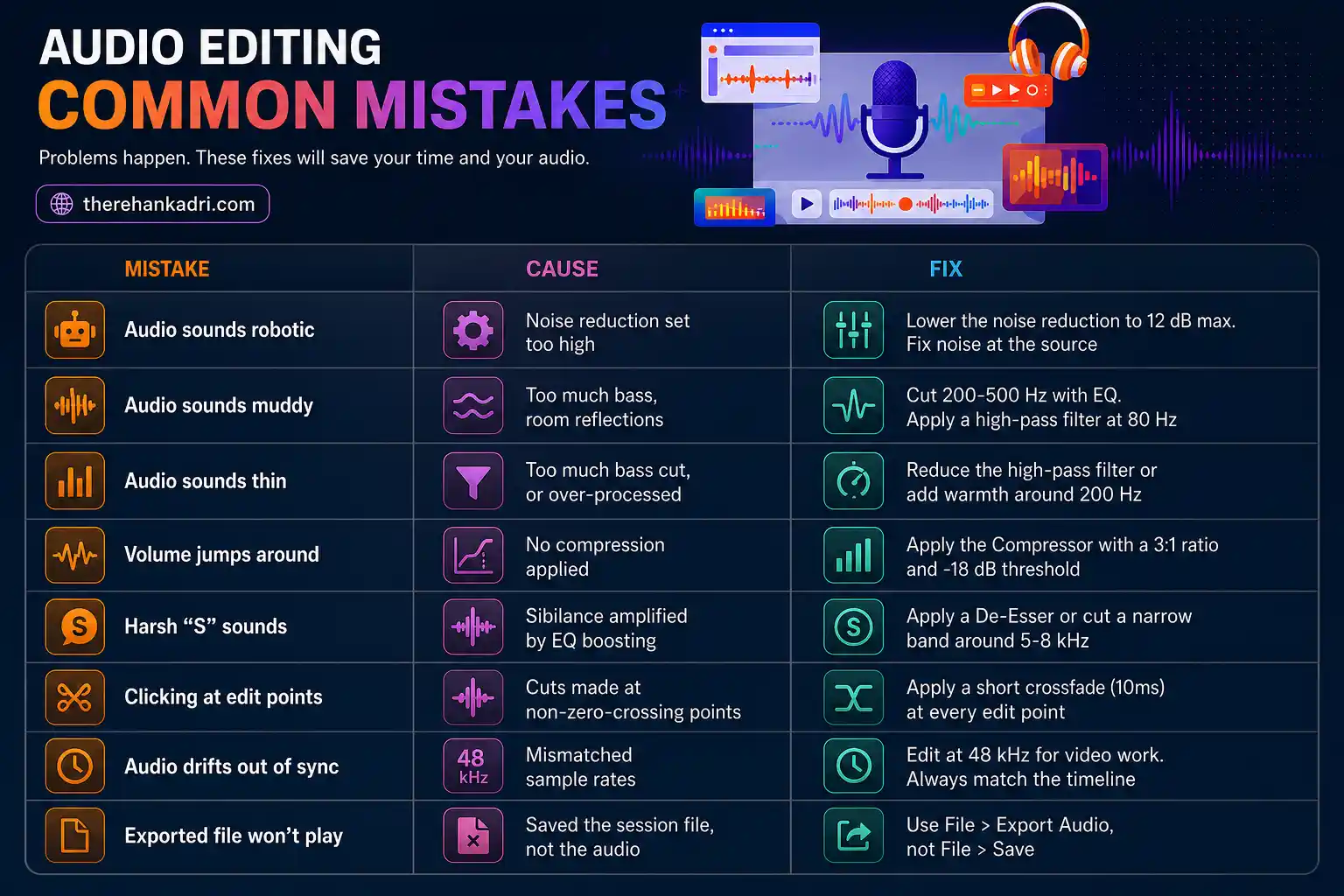
Every edit goes wrong eventually. Here's the cheat sheet for the most common issues:
| Mistake | Cause | Fix |
|---|---|---|
| Audio sounds robotic | Noise reduction set too high | Lower the noise reduction to 12 dB max. Fix noise at the source |
| Audio sounds muddy | Too much bass, room reflections | Cut 200-500 Hz with EQ. Apply a high-pass filter at 80 Hz |
| Audio sounds thin | Too much bass cut, or over-processed | Reduce the high-pass filter or add warmth around 200 Hz |
| Volume jumps around | No compression applied | Apply the Compressor with a 3:1 ratio and -18 dB threshold |
| Harsh "S" sounds | Sibilance amplified by EQ boosting | Apply a De-Esser or cut a narrow band around 5-8 kHz |
| Clicking at edit points | Cuts made at non-zero-crossing points | Apply a short crossfade (10ms) at every edit point |
| Audio drifts out of sync | Mismatched sample rates | Edit at 48 kHz for video work. Always match the timeline |
| Exported file won't play | Saved the session file, not the audio | Use File > Export Audio, not File > Save |
Three audio editing mistakes that ruin your sound
Mistake 1: Applying effects in the wrong order This is the most common beginner mistake. Applying EQ before noise removal boosts the noise. Compressing before EQ squashes frequencies you haven't shaped yet. Follow the Compressor Sandwich order. Every time.
Mistake 2: Over-processing noise reduction Cranking noise reduction to maximum doesn't make your audio cleaner. It makes your voice sound like a robot underwater. Noise reduction is a scalpel, not a sledgehammer. Use it gently (12 dB max) and fix the remaining noise at the source.
Mistake 3: Ignoring the export settings You can nail every effect in the chain and still ruin it at the export step. Wrong format, wrong sample rate, wrong bitrate. Check the LUFS table above and match the platform you're publishing to.
Pro audio editing tips
These are the small things that separate amateur audio from professional audio. They're rarely written about because they come from doing the work, not researching it.
The Room Tone trick: Always have 10 seconds of complete silence somewhere in your recording. Don't move. Don't breathe loudly. Just let the mic capture the room. This gives noise reduction software a perfect "noise profile" to analyze. Better profile = cleaner result.
The Clap Sync trick: Editing audio that was recorded separately from video? Line up the clap spike. If you clapped at the start of your recording (you should), find the massive spike in both the camera audio and the external mic audio. Align them. Done in 10 seconds.
The A/B test: After processing, toggle your effects on and off. Compare the raw version to the edited version. If the edited version sounds worse, you've over-processed. Pull back.
The phone speaker check: Edit the entire project on headphones for accuracy. Then play the final export once on your phone speaker and once on your laptop speaker. If it sounds good on all three, you're done.
The 80% AI rule: When using Adobe Podcast Enhance or Descript Studio Sound, never go to 100% enhancement. 80% sounds natural. 100% sounds like a robot. That last 20% removes the "human" quality from your voice.
Audio editing glossary
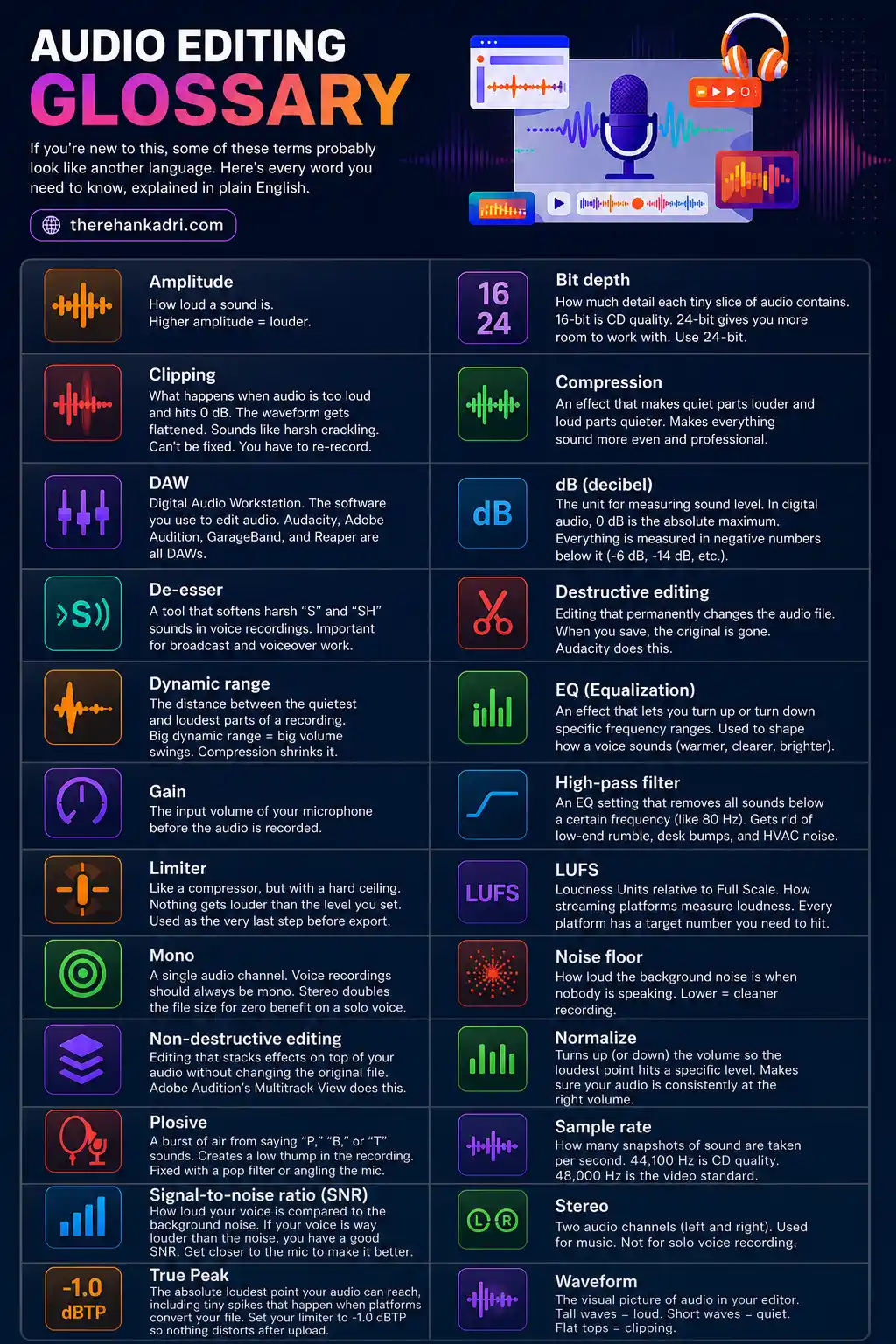
If you're new to this, some of these terms probably look like another language. Here's every word you need to know, explained in plain English.
Amplitude – How loud a sound is. Higher amplitude = louder.
Bit depth – How much detail each tiny slice of audio contains. 16-bit is CD quality. 24-bit gives you more room to work with. Use 24-bit.
Clipping – What happens when audio is too loud and hits 0 dB. The waveform gets flattened. Sounds like harsh crackling. Can't be fixed. You have to re-record.
Compression – An effect that makes quiet parts louder and loud parts quieter. Makes everything sound more even and professional.
DAW – Digital Audio Workstation. The software you use to edit audio. Audacity, Adobe Audition, GarageBand, and Reaper are all DAWs.
dB (decibel) – The unit for measuring sound level. In digital audio, 0 dB is the absolute maximum. Everything is measured in negative numbers below it (-6 dB, -14 dB, etc.).
De-esser – A tool that softens harsh "S" and "SH" sounds in voice recordings. Important for broadcast and voiceover work.
Destructive editing – Editing that permanently changes the audio file. When you save, the original is gone. Audacity does this.
Dynamic range – The distance between the quietest and loudest parts of a recording. Big dynamic range = big volume swings. Compression shrinks it.
EQ (Equalization) – An effect that lets you turn up or turn down specific frequency ranges. Used to shape how a voice sounds (warmer, clearer, brighter).
Gain – The input volume of your microphone before the audio is recorded.
High-pass filter – An EQ setting that removes all sounds below a certain frequency (like 80 Hz). Gets rid of low-end rumble, desk bumps, and HVAC noise.
Limiter – Like a compressor, but with a hard ceiling. Nothing gets louder than the level you set. Used as the very last step before export.
LUFS – Loudness Units relative to Full Scale. How streaming platforms measure loudness. Every platform has a target number you need to hit.
Mono – A single audio channel. Voice recordings should always be mono. Stereo doubles the file size for zero benefit on a solo voice.
Noise floor – How loud the background noise is when nobody is speaking. Lower = cleaner recording.
Non-destructive editing – Editing that stacks effects on top of your audio without changing the original file. Adobe Audition's Multitrack View does this.
Normalize – Turns up (or down) the volume so the loudest point hits a specific level. Makes sure your audio is consistently at the right volume.
Plosive – A burst of air from saying "P," "B," or "T" sounds. Creates a low thump in the recording. Fixed with a pop filter or angling the mic.
Sample rate – How many snapshots of sound are taken per second. 44,100 Hz is CD quality. 48,000 Hz is the video standard.
Signal-to-noise ratio (SNR) – How loud your voice is compared to the background noise. If your voice is way louder than the noise, you have a good SNR. Get closer to the mic to make it better.
Stereo – Two audio channels (left and right). Used for music. Not for solo voice recording.
True Peak – The absolute loudest point your audio can reach, including tiny spikes that happen when platforms convert your file. Set your limiter to -1.0 dBTP so nothing distorts after upload.
Waveform – The visual picture of audio in your editor. Tall waves = loud. Short waves = quiet. Flat tops = clipping.
The bottom line
Editing great audio comes down to one workflow: the Compressor Sandwich.
Noise Reduction. Normalize. EQ. Compress. Normalize.
Five steps. Five minutes. On any device.
Every platform. Every type of content. That workflow works.
AI tools like Adobe Podcast Enhance and Descript Studio Sound are free in 2026. Even bad recordings can be rescued.
You now have every workflow, every setting, and every fix. For any device. For any use case.
Now stop reading and go edit something.
Frequently Asked Questions
Quick answers to the most common questions from this article.
01What is the best free software to edit audio?
Audacity. It works on Windows, Mac, and Linux. It handles noise removal, EQ, compression, normalization, and exporting. It's ugly, but it's incredibly powerful. And it's been free for over 20 years.
02How do I edit audio without losing quality?
Edit in WAV format (uncompressed). Only convert to MP3 at the very end, and only if your platform requires it. Every time you save an MP3 and re-open it for more editing, you lose quality. WAV doesn't have that problem.
03What's the difference between audio editing and audio mixing?
Editing is cutting, trimming, and cleaning individual audio tracks. Mixing is combining multiple tracks together (voice, music, sound effects) and balancing their volumes, EQ, and panning. Most podcast and YouTube workflows involve both.
04Can I edit audio on my phone?
Yes. Lexis Audio Editor (Android) and WavePad (iPhone) both support noise reduction, EQ, compression, and WAV export. It won't match a desktop, but it's good enough for social media content and quick voiceovers.
05What loudness level should a podcast be?
-16 LUFS for Apple Podcasts. -14 LUFS for Spotify and most other platforms. If you're distributing to multiple platforms, master to -14 LUFS. It works everywhere.
06What is the correct order of audio effects?
Noise Reduction > Normalize > EQ > Compression > Normalize. This is the Compressor Sandwich. Do it in this order every time. Changing the order creates problems.
07How do I remove background noise from a recording?
Three approaches: (1) Use Audacity's noise profile method (highlight silence, get noise profile, apply to full track). (2) Use AI tools like Adobe Podcast Enhance for one-click cleanup. (3) Prevent it next time by treating your room and getting closer to the mic.
08What sample rate should I use?
48,000 Hz for anything involving video (YouTube, Reels, Shorts). 44,100 Hz for audio-only projects (podcasts, music). Mismatching sample rates causes audio drift. The voice slowly falls out of sync with the video over time.
09How do I fix room echo after recording?
AI tools like Adobe Podcast Enhance or Descript Studio Sound can reduce echo by rebuilding the voice signal. Traditional EQ can't remove echo once it's baked into the recording. The real fix is preventative: treat the room with soft materials before recording.
10How to edit audio without software?
You can use built-in tools on mobile apps or online editors for basic trimming and cleanup, but professional software gives you much better control over noise reduction, EQ, compression, and export quality.
11How to edit audio on mobile?
Use apps like CapCut, GarageBand, WavePad, or Lexis Audio Editor to trim clips, enhance clarity, reduce noise, and export finished audio directly from your phone.
12What is the easiest audio editing tool?
Audacity is one of the easiest free audio editing tools for beginners because it gives you trimming, noise reduction, EQ, compression, and export settings in one place.
13Can I edit audio for free?
Yes. Audacity, GarageBand, BandLab, Lexis Audio Editor, and several mobile apps let you edit audio for free.
14What is the best audio editing software?
Adobe Audition, Audacity, and GarageBand are among the most popular audio editing tools, with the best option depending on whether you need free editing, mobile editing, or advanced multitrack control.